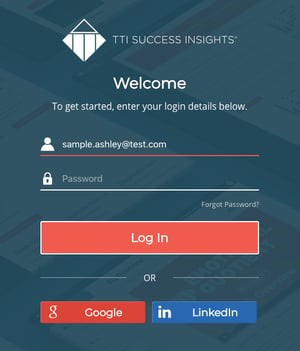
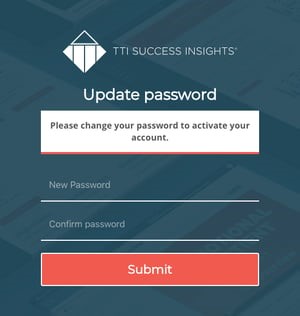
To make accessing and managing your IDS accounts and sub-accounts easier, TTI SI have introduced a new way of logging in to IDS. (Please note, the old way is still available for you to use and there is no obligation to change to the new method. This is also a completely separate system from the Diamond Portal and the learning site. These login details have not changed and will remain the same as before).
What is Single Sign On (SSO)?
As the name implies, it is a system that allows a user, such as yourself, to access multiple levels of accounts, without ever having to enter the login for each one.
How does this work?
Without getting technical, SSO systems work like this: 1. You attempt to access IDS 2. That site then asks the TTISI account system who you are. 3. If you are not logged in to your TTISI account, you will be asked to authenticate. 4. Then your TTISI account validates to IDS who you are and allows access.
How does this help me?
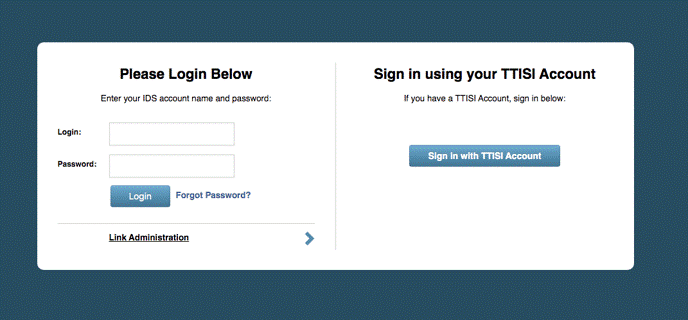
The new method allows you to go between your sub-accounts without the need to authenticate with a username and password each time. Next, the system in IDS will allow you to create additional sign-ins for other people that are kept under your account. This allows you to share access to your IDS account without sharing your username and password; each person has their own TTISI account. Getting started with Single Sign On (SSO) is meant to be easy. The login page for IDS now has two options, the manual login and the SSO login.
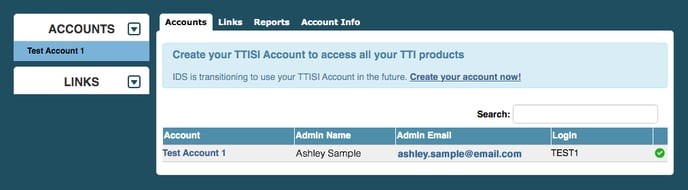
Before you can start using SSO, you will log in with your username and password. Once you have logged in, you will see a banner like this one:
Click “Create your account now!” on the end of the banner to create your TTISI account and link it to IDS. Once you have done this, you will be able to use the “Sign In with TTSI Account” button.
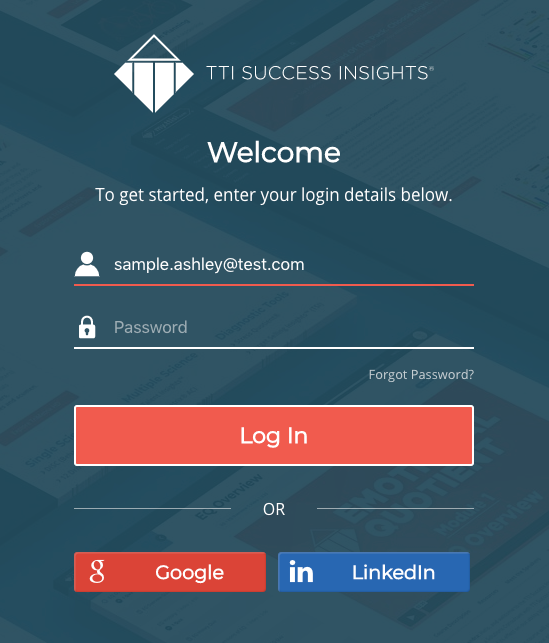
Once you are logged in, you will be routed to your new account page.
When managing your account, granting or revoking access, or working with another account you have been granted access to, switching between them is as easy as a few clicks.
Switching between accounts will be an important process to understand with the new login system and account access management options.
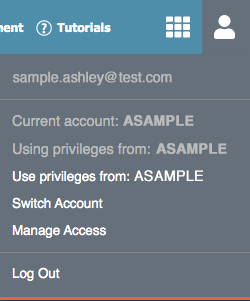
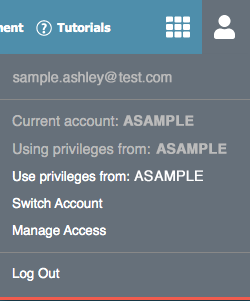
To start, click the person icon in the upper right.
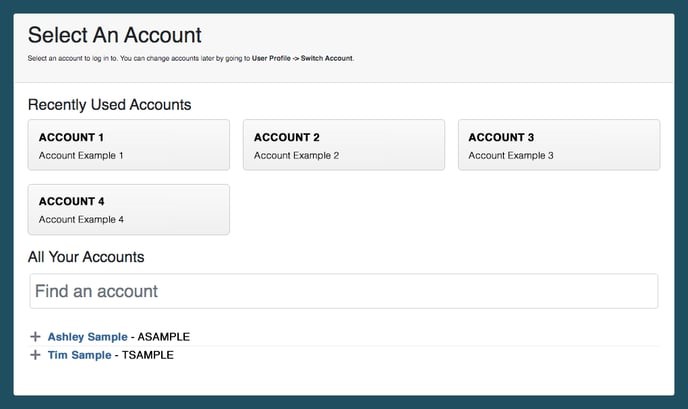
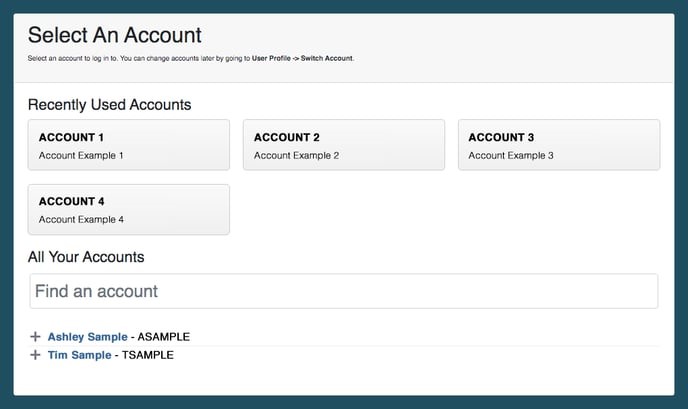
From this menu, click on “Switch Account”. You will be taken to this screen.
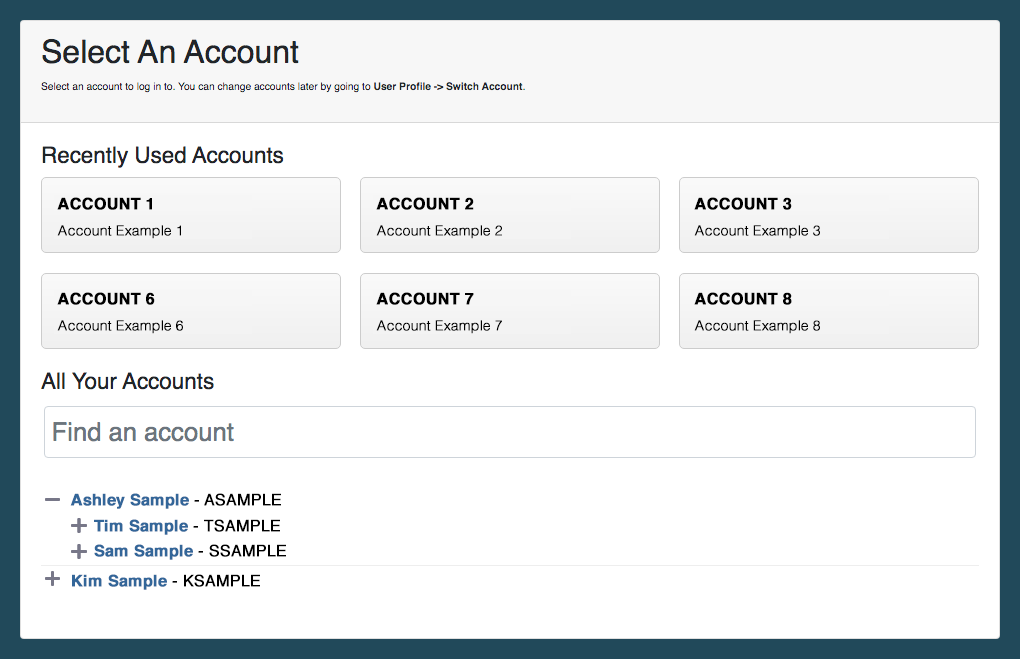
If you are looking to access your primary account, you can click the name, and it will open that account. However, if you need to access a sub-account (very important for managing access to specific sub-accounts), you can start typing in the “Find an Account” section or click the plus sign to the left of the account name to reveal the sub-accounts.
If there are further levels of sub-accounts, they can be accessed by clicking the plus sign next to their name. To enter any sub-account, simply click the name once you have located the desired account.
There are many reasons to give access to your account, or sub-accounts, and controlling that access is now easier.
The new Single Sign On system will allow you to invite people to access your IDS account and/or sub-accounts. To give someone access, we need to select the account or sub-account you want them to be able to access.
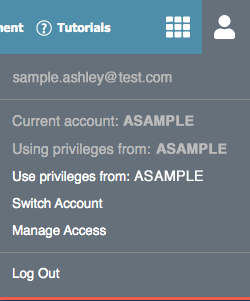
Once you are in the correct account or sub-account, click the person icon in the upper right. This time click the “Manage Access” option.
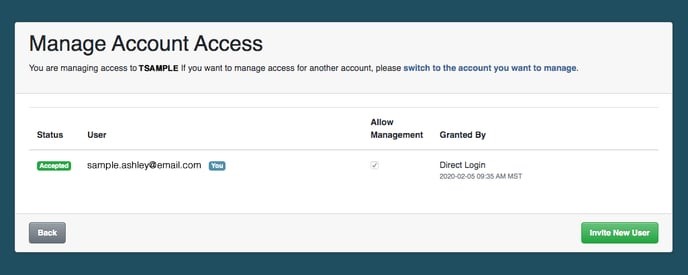
This window will now show who currently has access. To invite another person, click “Invite New User”.
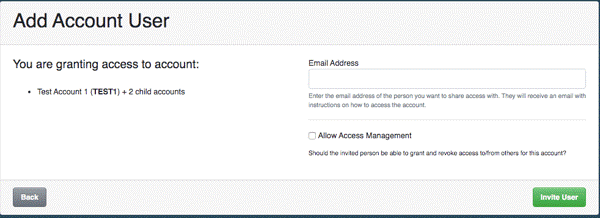
On this page, simply enter the email address of the person you want to invite. The check box for “Allow Access Management” will provide the invited person the ability to invite and remove access to others for this account.
NOTE: If you grant Allow Access Management, they will be able to add as well as remove others attached to this account, including you!
With the new login system, you can now see what the other users see in IDS
Start by switching into the account you are interested in.
Note: You can only switch to accounts that are in your account tree.
You are now logged in as that sub-account as if you authenticated as them. Whatever aspects of IDS you see are exactly what your sub-account will see.
If you need to perform some action on the account that the account does not have sufficient rights for, you can elevate your current privileges to those of your actual account.
To do so, click the person icon in the upper right corner. On the resulting menu, you can see the current account, and then what privileges you are using in grey. The next option in the list will allow you to toggle between the privileges of the current account and your privileges.
Once you have invited someone to access your account, here is what they need to do.
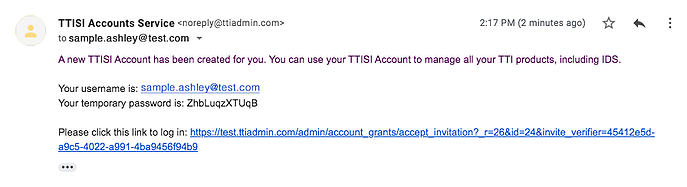
If your invitee has never had an account, they should look for an email from noreply@ttiadmin.com with the subject, “You have been invited to manage an IDS account”
They should copy the temporary password in the email, then click on the link. This will open the Single Sign On page.
They should paste the password they copied from the email into the field.
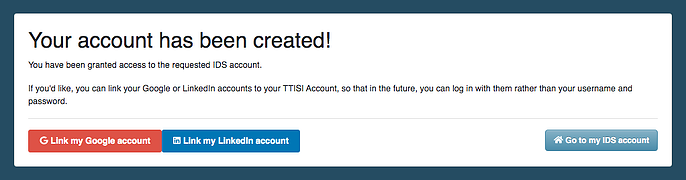
They will then need to create a personal password, and update their name in the system. Once registration is complete, they will get this screen.
If you have any questions at all, please contact a member of the team on 01782 855700 or email info@ttisuccessinsights.co.uk. If you are happy with the old method of logging into accounts in IDS you do not need to change.